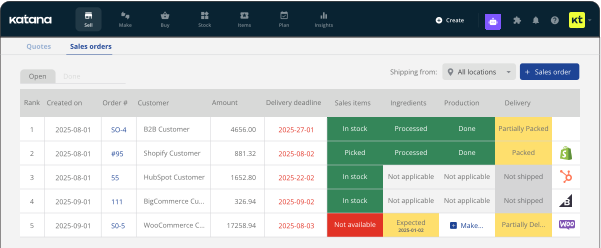
Custom fields are now available across Katana (beta)
Add your own custom fields to every record you work with in Katana and find, filter, and print by that data across your entire operation.

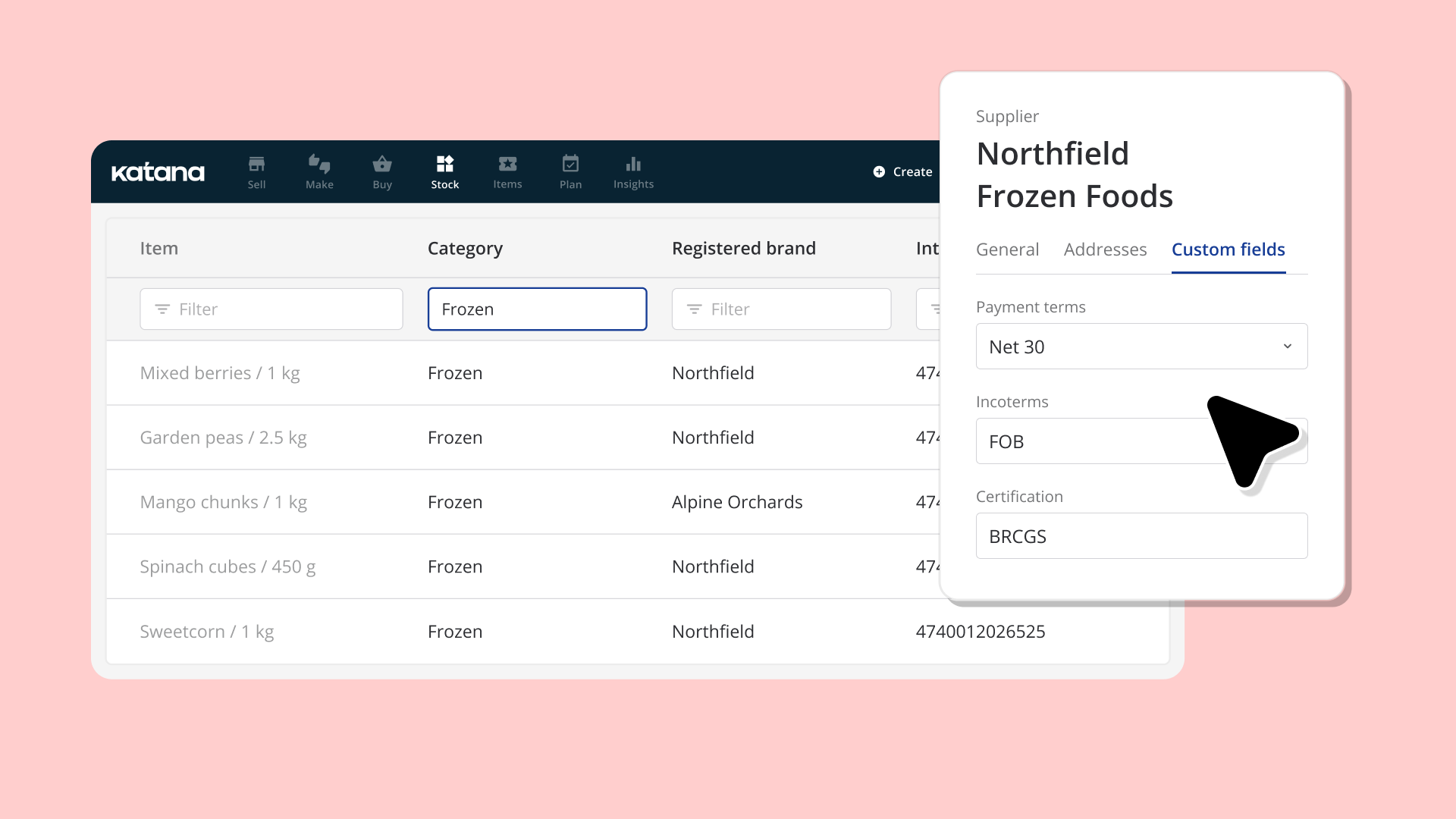
You can now add your own custom fields to every record you work with in Katana — items, purchase orders, manufacturing orders and their production operations and recipe rows, suppliers, customers, and sales orders — then find, filter, and print by that data.
Most product businesses track details that don’t fit into standard fields: things like HS codes, rev levels, payment terms, QC results, cut specs. Custom fields let you put that info on the record it belongs, make it findable in the screens your team already works in, and carry it onto the orders and production those records create.
Set up custom fields once, use them everywhere
Define a custom field once in Settings → Custom fields — text, number, date, checkbox, or URL, up to 100 per record type — and it appears on every record of that type from that point forward. One Settings screen, one way of working, across every core record in Katana.
Custom fields show up as columns on the main list screens, where you can filter, sort, and save views based on what matters to your team. Each person keeps their own view without affecting anyone else’s.
When you create a new record from another, custom field values follow. Item fields show up on sales order lines, sales order fields land on the manufacturing order, and recipe row fields carry through to production. You can still edit each copy — the spec set on the order reaches the person making it without anyone retyping it. Fields on record headers print on the relevant PDFs, and every custom field is readable and writable through the public API, webhooks, Zapier, and Make.
Where custom fields are available in Katana (beta)
- Items (products, materials, services): custom fields on the item card, Items and Stock list screens, carried onto sales order lines
- Purchase orders and outsourced POs: header and row-level custom fields, visible in the Purchase list, on PO PDFs, and in exports
- Production operations: per-step custom fields on manufacturing orders, visible in Make Tasks and the Shopfloor App
- Manufacturing orders: header custom fields, visible in the Make list and on work order PDFs
- BOM and recipe rows: custom fields per recipe line, carried onto MO recipe rows and PDFs
- Suppliers: custom fields on the supplier record and Suppliers list
- Customers: custom fields on the customer record and Customers list
- Sales orders: header and row-level custom fields (permanently available on all plans)
On what plans are Custom Fields available?
All custom fields are now available on all plans, during beta. Later this year, Custom Fields will become Advantage-only, except Sales Orders, which will remain available on all plans permanently. Fields and values you add during the beta are kept.
Want custom fields on more than sales orders after the beta? Talk to us.
How to get started with custom fields
Go to Settings → Katana Labs, enable the Custom Fields toggle, then head to Settings → Custom fields to create and manage your custom field definitions.
Get inventory trends, news, and tips every month
Explore all categories
Get visibility over your sales and stock
Wave goodbye to uncertainty with Katana Cloud Inventory — AI-powered for total inventory control