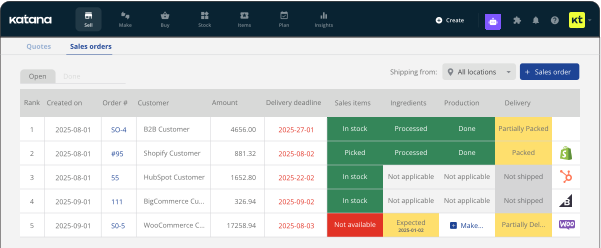
Stockout risk: stop stockouts before they happen
Stockout Risk adds demand, days of stock left and a risk badge to every item on your Inventory screen.
Spot what needs reordering and place the order from the same row.

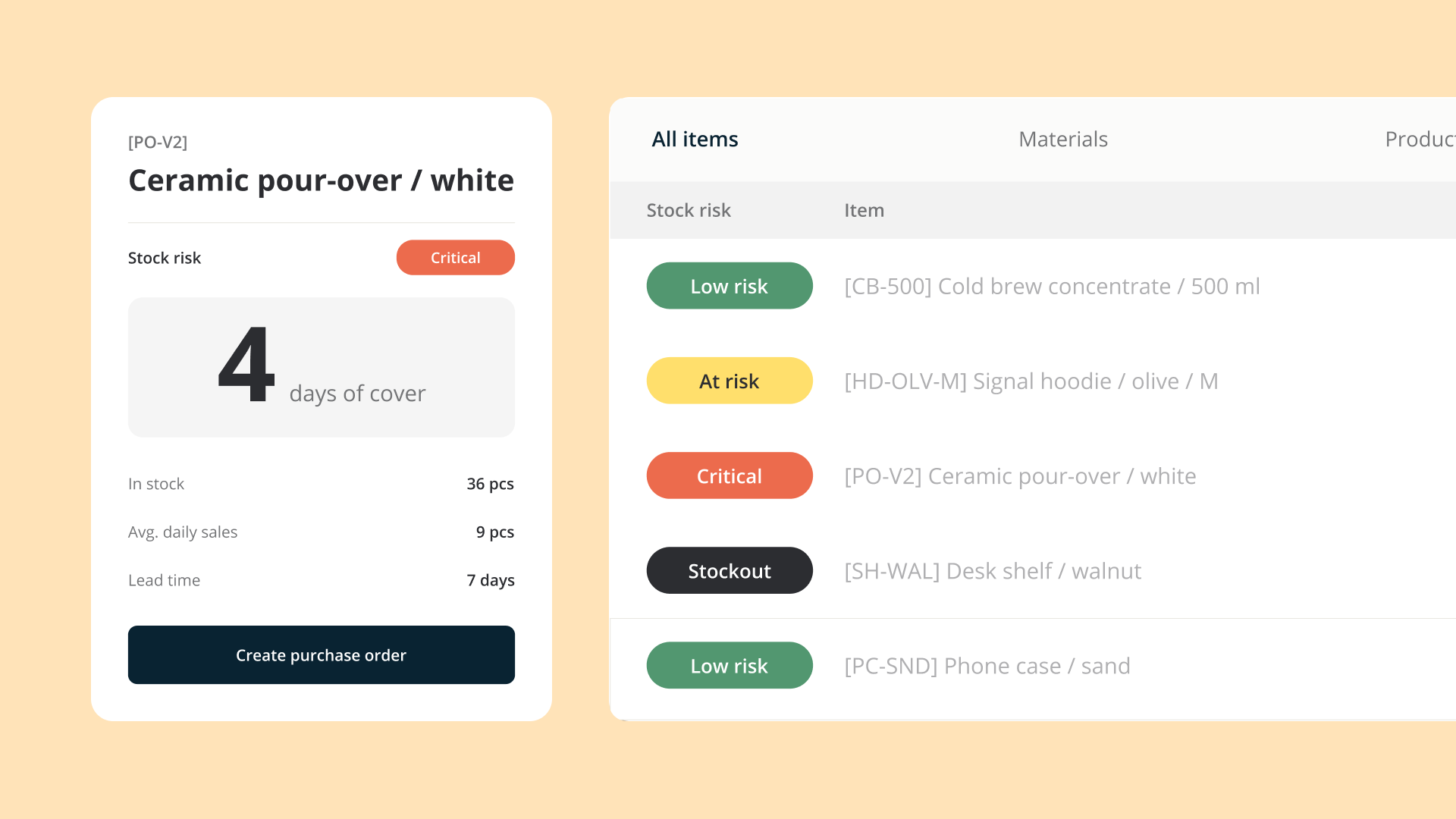
Stockout Risk shows which items need reordering or prioritization in production, right on your Inventory screen. Every row shows how long an item’s stock will last and whether it needs reordering.
Track stockout risk for every item, with no setup
You’ll find new columns on Stock → Inventory, filled in from data already in your account. There’s nothing to configure.
| Stockout risk | Badge | What it shows |
|---|---|---|
| Avg daily demand (30) | How much of the item you’ve used per day over the last 30 days, from sales orders, manufacturing orders, or both. | |
| Days of stock left | How long your current stock will last at that pace. | |
| Stock risk | Low risk | No shortfall in sight. |
| At Risk/High risk | A shortfall is coming, and you have about 7 days to reorder. | |
| Critical | A new order can’t arrive before the shortfall. | |
| Stockout | Out of stock, with demand and nothing on order. |
With one location, the signals appear in your main Inventory view. With more than one, they add up stock across all locations and appear in the All locations view. That view also shows a read-only safety stock total for each item. To change safety stock, switch to a specific location.
Check lead-time-aware reorder points
The risk badge considers each item’s lead time and flags whether a new order can still be produced or arrive in time. Hover over a badge to see the lead time and demand behind it. If the lead time looks off, update it on the item and the badge follows. The reorder point appears in a separate column.
For lead time, Katana uses the item’s own setting first, then your default purchase or manufacturing lead time, and finally a 14-day fallback. The more of your items have real lead times, the more accurate the badge gets.
Create purchase and manufacturing orders from each row
You’ll see Buy, Make, or Outsource buttons on each row. Click one, and Katana opens an order dialog with a recommended quantity already set, based on demand and lead time.
The dialog shows three options: Minimum order, Recommended order, and Maximum order. Each option covers a larger amount of demand over the lead time. Go with Minimum when cash is tight, or Maximum ahead of a busy season. By default, Recommended is selected. You can change the quantity if you want, then confirm your choice. If your supplier’s minimum order is higher, Katana will use that amount and explain the reason.
To order multiple items at once, tick their rows and choose Buy, Make, or Outsource from the toolbar. Each item gets its own recommended quantity, and you can untick anything you’d rather leave out. Items from the same supplier are grouped on one purchase order, and Katana creates a separate manufacturing order for each item.
Forecast demand with AI Forecasting
If you want more detail on an item, just click its risk badge. AI Forecasting will pull it up with the demand forecast, the logic behind the numbers, and a quick way to adjust safety stock. You can also flag anything your data misses, like a sudden spike or a planned promotion.
Use the order dialog when you already know what to do. If you need to dig into an item first, start with the badge.
How to get started
Go to Stock → Inventory. If you have more than one location, set the location picker to All locations.
Every business reorders and manufactures a little differently. If your process needs more than the standard setup, our team can look at how you work and shape Katana around it.
Get inventory trends, news, and tips every month
Explore all categories
Get visibility over your sales and stock
Wave goodbye to uncertainty with Katana Cloud Inventory — AI-powered for total inventory control