Fulfill your Amazon FBM orders in Katana
Run your self-fulfilled Amazon orders natively in Katana, and keep your warehouse and Amazon in sync automatically.


Amazon regularly updates its seller-fulfilled requirements. Keeping up with changes in handling times, delivery performance thresholds, or tracking standards is a lot easier when your warehouse and Amazon stay in sync. Better yet, if they do so automatically.
Katana’s native FBM integration does just that. Along with our native Amazon FBA integration, you can run both Amazon fulfillment paths run natively in one place – alongside your inventory, purchasing, and production.
How Katana’s FBM Amazon integration works
Connect your Amazon Seller account once and you’re set. Pick the Katana location your FBM orders fulfill from, choose which stock value Katana pushes to Amazon (“In stock” or “In stock + Expected”), and map your FBM listings to Katana products.
The integration works across all your Amazon marketplaces, and replaces any third-party connector you’ve been using to bridge the gap.
From there, everything runs automatically:
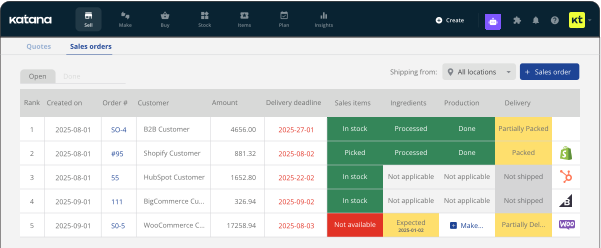
- FBM orders flow into the Sell screen, marked “Amazon” and ready to fulfill alongside your other channels
- Pick and pack them as you usually do, choose your carrier, and mark the order as partially or fully delivered. Katana writes the tracking number, delivery status, and carrier details back to Amazon instantly, without any manual entry in Seller Central.
- As stock moves, Katana pushes updated inventory levels to your FBM listings in real time, so your listings stay accurate and you don’t oversell
- Filter reports by the Amazon FBM channel to keep your sales data separate and easy to review
Running FBA and FBM together
If you sell the same product through both fulfillment paths, SKU aliasing lets one Katana product carry both its FBA and FBM Amazon SKUs. One Katana product covers both channels. You get one single inventory record, without any duplication.
How to get started
Go to Integrations → Amazon, turn on FBM, and follow the setup guide to get started.
Get inventory trends, news, and tips every month
Explore all categories
Get visibility over your sales and stock
Wave goodbye to uncertainty with Katana Cloud Inventory — AI-powered for total inventory control