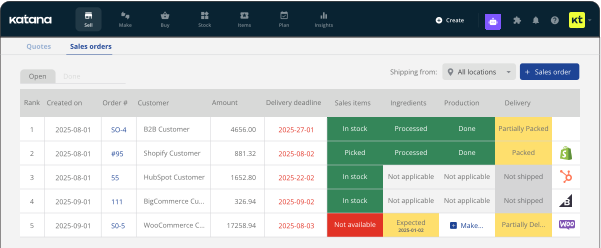
Multiple Bin Locations: Track stock by bin, across your entire warehouse
Katana now tracks stock at the bin level: exact locations, live counts, and native transfers across your entire warehouse operation.

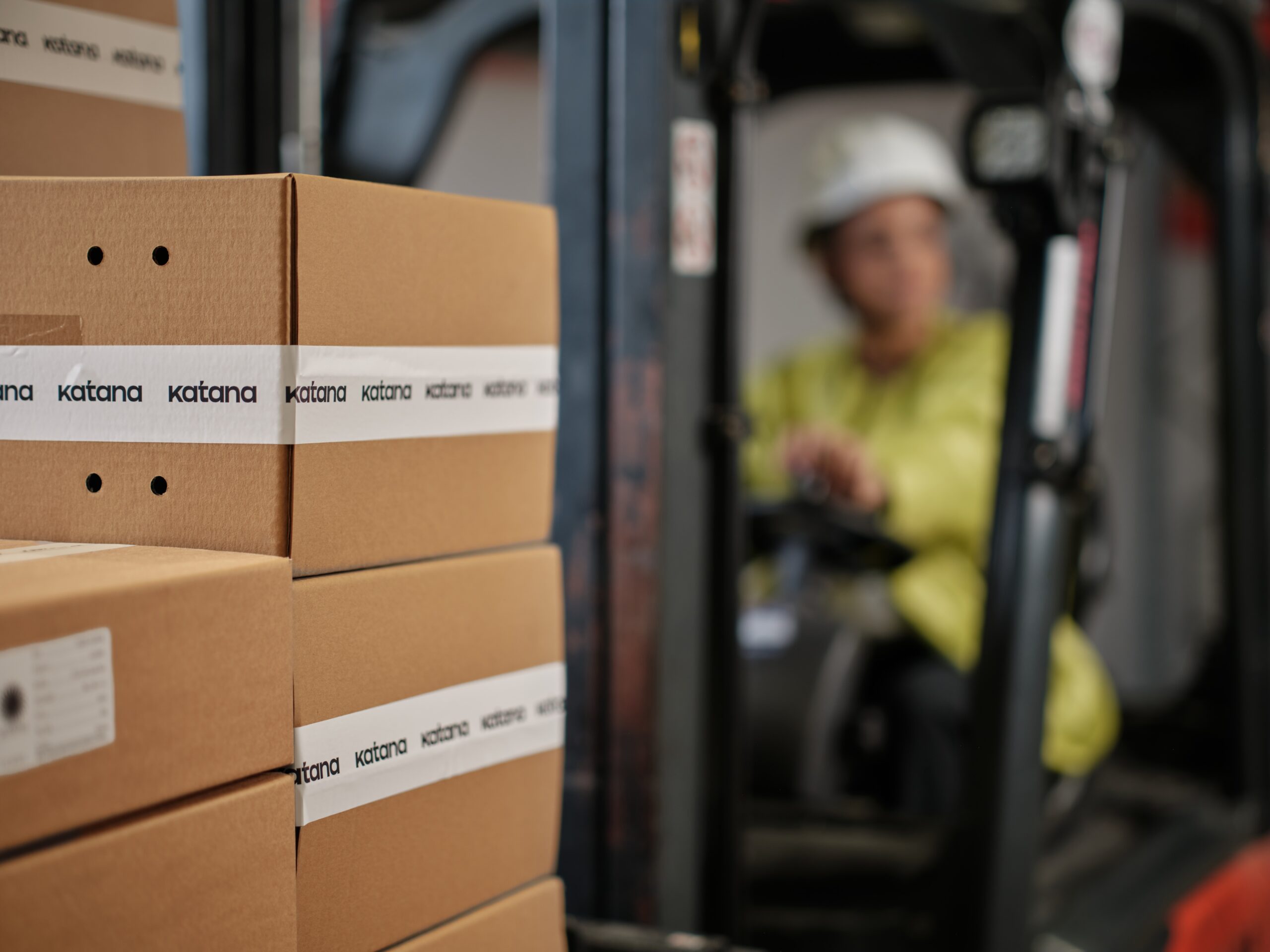
Make sure your team always knows where to go: Katana now supports multiple bin locations. Bin references appear directly on sales orders and manufacturing orders, stock is tracked individually per bin, and bin-to-bin transfers handle replenishment natively. Quantities update automatically as orders are picked and finished.
Challenge With multi-bin Finding stock during picking Exact bin shown on every SO and MO row Same SKU stored across multiple bins, system not aware Every bin has its own live count, tracked individually Moving stock from bulk storage to pick lane Native bin-to-bin transfer, clean and auditable
How it works:
Multi-bin tracks inventory at the item · location · bin level across the full transaction lifecycle: purchase order receiving, manufacturing orders, sales order picking, and bin-to-bin movements.
- PO receiving: after receiving a PO, create a putaway transfer to move quantities from Unassigned into a specific bin
- Bin-to-bin transfers: replenish pick lanes from bulk storage or consolidate partial pallets as a clean, auditable transfer
- SO and MO picking: choose which bin stock is taken from and generate a printed pick list with bin references included
- Stock adjustments: adjust quantities at the bin level directly
- Batch and serial tracking: batch and serial numbers are tracked at the bin level from receipt through dispatch
- Stocktakes: count per bin and reconcile inside Katana
- Stocktransfers: select origin bin when sending, guided put-away at destination
Bin locations appear in the Shopfloor App: floor workers can see the bins they took items from and pass that information to the relevant MO. All these workflows are supported by Katana API.
Where to find it
Go to Inventory → Stock Inventory and click the bin icon next to any item quantity to see its per-bin breakdown. Configure and manage bin locations under Settings → Warehouse → Bin Locations. Bins are set on each item’s card and are suggested based on where quantities are during receiving and picking. You can also see the bins indicator near quantity on all orders and stock documents.
Multi-bin is available with the Warehouse Management add-on.
More coming soon
Your warehouse team’s day is about to get even simpler. Coming up next: bins are coming to the Warehouse App, returned stock includes bin logic, exchange bin data across different systems, and broader bin coverage across more of the surfaces your warehouse team works in every day.
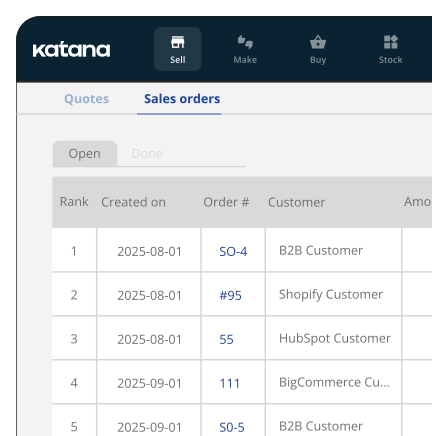
Ready for real-time inventory control?
Join 1600+ product businesses replacing outdated systems with inventory software made for modern commerce.
Get inventory trends, news, and tips every month
Explore all categories
Get visibility over your sales and stock
Wave goodbye to uncertainty with Katana Cloud Inventory — AI-powered for total inventory control