How to set up Amazon SKU aliasing for multi-channel inventory
Amazon uses a different identifier system from every other sales channel, and the same product can carry multiple SKUs depending on the marketplace and the tool you’re looking at. This article covers how to structure your alias mapping and set it up, manually or through Katana’s native Amazon FBA integration.

Every product you sell on Amazon gets a Seller SKU: an identifier you assign, or let Amazon generate for you, that lives inside your Seller Central account. The problem is that this SKU rarely matches the internal code you use to track the same product everywhere else.
And once you’re selling across multiple channels and marketplaces, the same physical item can carry four or five different identifiers depending on where you look. Keeping stock counts accurate across all of them becomes the kind of work that eats hours every week.
SKU aliasing maps each external identifier back to a single internal product record, giving every channel a consistent view of the same inventory.
Why the same product has different SKUs on every Amazon marketplace
Most channels use one identifier per product. Amazon uses three simultaneously. The ASIN is Amazon’s own catalog number – public, fixed, assigned by Amazon to identify the product itself. The Seller SKU (also called the MSKU) is the identifier you control, private to your account, and it’s what your alias mapping will actually point to. Then there’s the FNSKU, which applies to FBA products specifically. Amazon assigns it to attribute physical inventory in a fulfillment center to your account rather than another seller’s.
What catches multi-channel teams off guard is that none of these identifiers carry across marketplaces. The same product listed in the US and UK gets a separate ASIN and a separate Seller SKU in each region. A catalog of 200 SKUs selling across two Amazon marketplaces already means 400 Seller SKUs to account for before you’ve mapped a single one back to your internal codes. Add other sales channels into the mix and the mapping problem grows quickly – which is why teams that try to manage it in a spreadsheet find it workable at first but more and more fragile as the catalog grows.
How to structure your master SKUs before Amazon alias mapping
The alias mapping is only as clean as the internal SKU system it points to. Before touching any tooling or building a mapping table, it’s worth making sure your master SKUs are in good shape, because problems in your internal naming convention get multiplied across every channel alias you create.
The first decision is what your master SKU represents. It should map to a single sellable product configuration. If you’re selling a t-shirt in three colors and four sizes, that’s twelve master SKUs, not one. Variants need their own records, because Amazon tracks each variant as a separate Seller SKU under a parent listing, and your alias table needs to match that structure to route stock accurately.
The second is how you handle regional differences. Some brands sell the same physical product under different listings in different markets. If that’s the case, those are separate SKUs for aliasing purposes, even if the item in the warehouse is identical. Getting clear on this before you build the mapping table saves a lot of cleanup later.
The third is naming consistency. If your internal codes aren’t applied systematically, the alias table becomes harder to maintain and easier to break. It’s worth cleaning up your master SKU list first, particularly for any product that sells across more than one Amazon marketplace.
How to set up Amazon SKU aliasing manually
The spreadsheet approach is simple enough to get started with. You build a mapping table with your master SKU as the anchor, then add columns for each external identifier you need to track: the Amazon Seller SKU, the marketplace it belongs to, and the ASIN. Each row represents one alias relationship, so a single product selling across two Amazon marketplaces gets two rows, one per region.
A few things to get right from the start. Seller SKUs are case-sensitive on Amazon, and a mismatch between what’s in your table and what’s in Seller Central will break inventory updates without giving you a clear error. It’s also worth knowing that Amazon doesn’t let you edit a Seller SKU once it’s been assigned to a listing. If you need to change one, you have to delete the listing and recreate it, which means updating your mapping table and any system pointing to that alias. Building the table with that constraint in mind, and keeping a record of your Seller SKUs and auditing them periodically against what’s live in Seller Central, saves a lot of time when something eventually needs updating.
Where the spreadsheet starts to struggle is variants and volume. A parent-child listing structure on Amazon – a product with multiple sizes or colors – means each child variant has its own Seller SKU, and your mapping table needs a separate row for each one. That’s manageable for a small catalog, but as the product range grows and more marketplaces get added, the table gets long enough that maintaining it by hand becomes a risk. One stale row or a copy-paste error in the Seller SKU column can cause stock to stop syncing to that variant with no obvious sign that something is wrong.
How to set up Amazon SKU aliasing in Katana
In Katana, alias mapping lives inside the product record itself rather than in a separate spreadsheet. Each product has an external identifiers table where you add the Amazon Seller SKU alongside the marketplace it belongs to. If a product sells in the US and UK, it gets two rows in that table – one per marketplace – both pointing back to the same Katana product. Variants follow the same logic: each variant in Katana has its own external identifiers table, which maps cleanly to Amazon’s parent-child structure without requiring a separate document to keep in sync.
For larger catalogs, Katana supports bulk CSV upload, so you can populate the alias mapping across your full product range at once rather than working through it product by product. The format mirrors what you’d build in a spreadsheet anyway, which makes it straightforward to import an existing mapping table if you already have one.
The big difference from managing aliases in a standalone spreadsheet is that the mapping connects directly to live inventory. When Katana pulls in FBA stock levels from Amazon, it uses the alias table to match that stock to the right internal product and updates the External Available field accordingly.
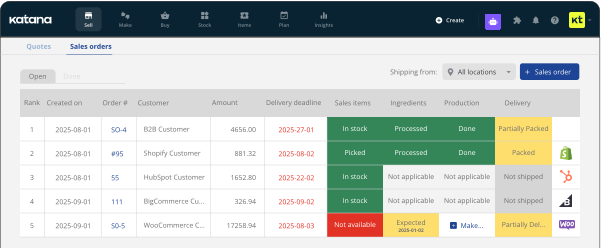
Incoming Amazon orders are matched the same way: the Seller SKU on the order maps through the alias table to the correct Katana product, closes out the right stock, and shows up in the same order view as everything else coming in across your other channels. The alias table is part of how stock moves through the system.
Bundles are the one area that requires extra setup on the internal side before the alias mapping can do its job. A bundle listed on Amazon as a single ASIN needs to map to a dedicated bundle SKU in Katana, which then draws down the component stock separately. If you’re managing bundled or co-manufactured products, that’s where bill of materials tracking becomes relevant.
Try Amazon SKU aliasing with your own data
If you want to see how the alias mapping works with your own products, Katana’s free plan lets you connect your Amazon account and work through the setup without a time limit. Visit the Amazon FBA integration page to learn more on what the connection covers and how inventory sync is configured across marketplaces.
FAQ: SKU aliasing on Amazon
SKU aliasing is the process of mapping an Amazon Seller SKU to the internal product code you use in your inventory system. Because Amazon’s identifier rarely matches your internal code, the alias acts as a bridge – so when stock moves or an order comes in on Amazon, your inventory system knows which product to update.
Each Amazon marketplace – US, UK, EU – assigns a separate Seller SKU and ASIN to the same product. A Seller SKU created for a US listing doesn’t carry over to a UK listing of the same item. For brands selling across multiple regions, that means maintaining a separate alias for each marketplace per product.
No. Once a Seller SKU is assigned to a listing, Amazon locks it. If you need to change it, you have to delete the listing and create a new one, which also means updating any alias mapping that pointed to the old SKU.
The ASIN is Amazon’s catalog identifier for a product – public, fixed, and assigned by Amazon. The Seller SKU is the identifier you control, private to your account, and the one your alias mapping points to. The FNSKU applies to FBA products only and is assigned by Amazon to attribute inventory in a fulfillment center to your account specifically.
In Katana, each product has an external identifiers table where you map Amazon Seller SKUs to the corresponding internal product record, one row per marketplace. For larger catalogs, you can upload the full mapping via CSV. Once the aliases are in place, Katana uses them to sync FBA stock levels and match incoming Amazon orders to the right product automatically, without a separate spreadsheet to maintain alongside your inventory.
Get inventory trends, news, and tips every month
Explore all categories
Get visibility over your sales and stock
Wave goodbye to uncertainty with Katana Cloud Inventory — AI-powered for total inventory control