
New in Katana: native 3PL and WMS integrations
Katana now connects natively to over 137 3PL and WMS providers. This post walks you through connecting your 3PL and choosing which syncs fit your setup.

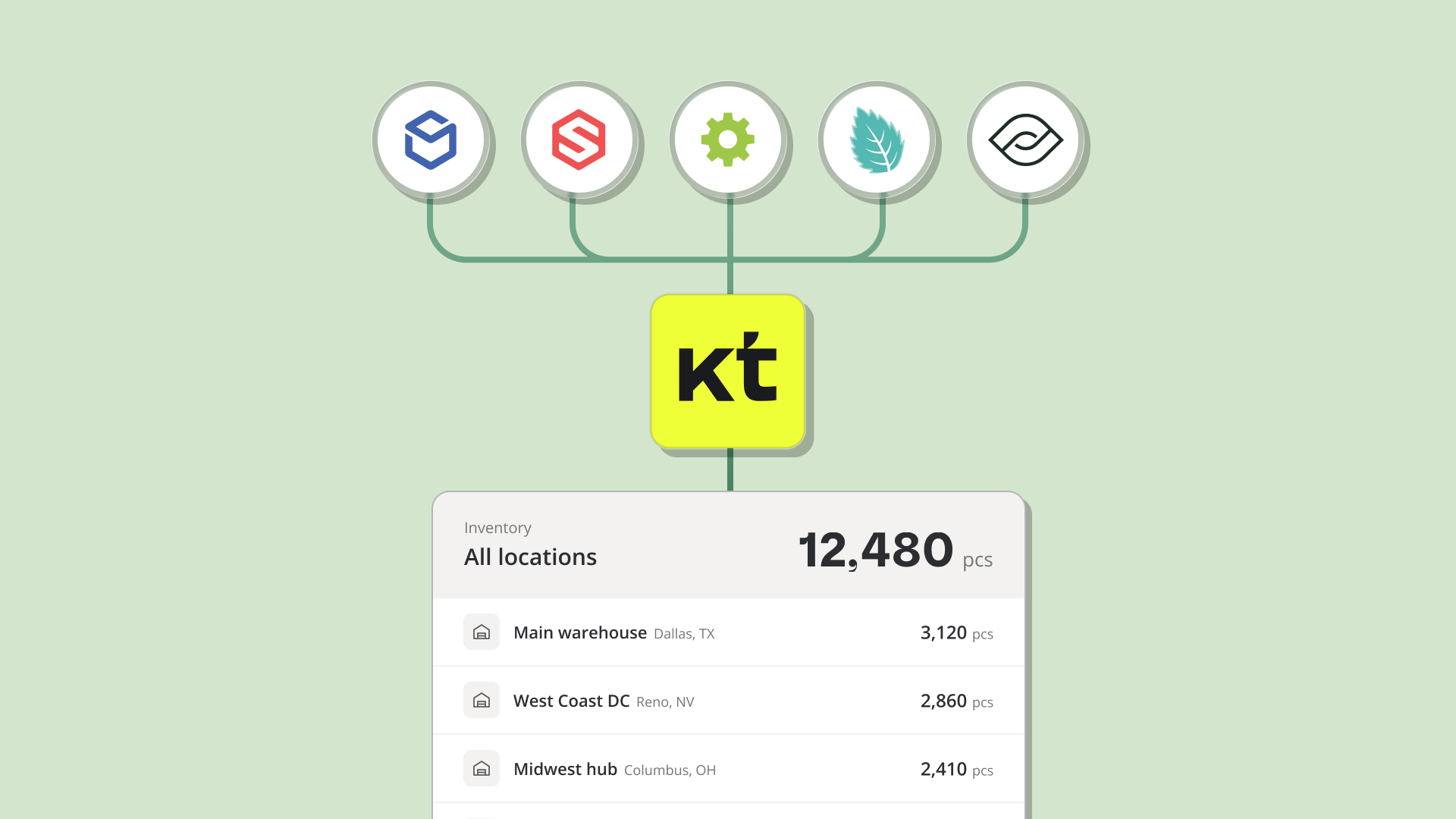
Katana now connects natively to over 137 3PL and WMS providers, including ShipBob, ShipHero, ShipStation, ShipMonk, Mintsoft, CartonCloud, Quickbox, Flexport and ControlPort.
Connect your 3PL by name and its orders, shipments, tracking, stock levels and inbound deliveries flow into Katana automatically without middleware or double entry.
That gives you one view of inventory at every location, including the stock your 3PL holds, without retyping its reports or reconciling numbers by hand. The stock levels you sell and reorder from match what’s on your 3PL’s shelves.
If your 3PL isn’t listed, check which warehouse software they use. A lot of 3PLs run on platforms with different names, and that’s the one Katana connects to. You can also reach out to our team to request new providers.
How to connect your 3PL to Katana
Every 3PL connects the same way: once you’ve set up your first one, adding a second follows the same steps. The options you see might look a little different depending on what each 3PL’s platform shares.
1. Connect your 3PL
Find your 3PL by name on Katana’s Integrations marketplace and log in with your 3PL account details. You don’t need a separate connector tool or developer work. Katana then reads your 3PL’s setup, which can take a couple of minutes.
2. Choose which warehouses sync
Each 3PL warehouse you map gets its own location in Katana. Warehouses you leave unmapped stay out of Katana completely, along with their stock and the orders shipped from them.
3. Match your products
Your 3PL’s product catalog imports and matches to your Katana products by SKU. If your SKUs differ between the two systems, you can download your Katana SKUs as a spreadsheet, add your 3PL’s SKU next to each one and upload it back. New SKUs keep matching as you add them.
4. Choose your syncs and activate
Turn on the syncs you need, then activate the integration, and your 3PL’s data starts coming into Katana automatically. To see each step before you connect, try our interactive demo.
How 3PL inventory sync works in Katana
Orders, fulfillment and tracking
Every order your 3PL fulfills shows up in Katana as a sales order, with the customer details from the ship-to address. You choose the stage at which an order is created in Katana, for example as soon as it’s open at the 3PL or only once it’s delivered, and you can import the orders already in your 3PL once when you connect.
When the 3PL ships, the matching sales order is marked fulfilled with the carrier, tracking number and ship date. Partial shipments fulfill only the lines that shipped, and orders sent in several packages get tracking for each one. Your team can look up where any order is from Katana, without opening the 3PL’s portal.
Stock levels and reconciliation
Your 3PL’s on-hand stock shows in Katana next to your own numbers for each location, so you can see where they differ before anything changes. Reconciliation then creates stock adjustments that bring Katana in line with the 3PL, which keeps the stock you sell from accurate. You can run it on a daily or weekly schedule at a time you choose, or only when you start it yourself, and every adjustment is logged.
Inbound stock
When you send a delivery to your 3PL, it shows in Katana as a stock transfer as soon as it arrives at the 3PL’s warehouse. You don’t need to enter anything in either system. Since your 3PL only shares which of its warehouses received the delivery, you choose a default origin location in Katana for each one. If your 3PL also shares supplier details, you can set a different origin for deliveries from specific suppliers. You also decide whether the transfer stays in transit while the 3PL receives the goods or shows as received right away.
How brands use 3PL and WMS integrations in Katana
Which syncs you turn on depends on how you work with your 3PL. The table below shows what to turn on for four different setups. If your business fits more than one row, you can combine them. The integration also works alongside Shopify, Amazon, QuickBooks, Xero and Katana’s other integrations, and everything feeds into the same Katana account.
| Your setup | What to turn on | What you stop doing by hand |
|---|---|---|
| You make products in-house and ship part of your orders through a 3PL | Order sync, inbound stock and inventory sync | Creating a sales order for every order the 3PL ships and a stock transfer for every delivery you send to its warehouse |
| You sell on Shopify and Amazon, with FBA and a 3PL | Inventory sync only, since Shopify already sends your orders to Katana | Logging into the 3PL’s portal to check what it has on hand, separately from your FBA and own-warehouse stock |
| You work with more than one 3PL, for example one per region | Each 3PL connected the same way, with every warehouse as its own Katana location | Checking each 3PL’s system separately to piece together your total stock |
| You connect your 3PL through a middleware tool today | The same syncs, connected natively | Paying for and maintaining a separate tool between your 3PL and Katana |
Learn more about Katana’s 3PL and WMS integrations
You’ll find every supported provider, and how each integration works, on the 3PL and WMS integrations page. If you want help choosing the right setup for your business, reach out to our team.
FAQ about 3PL and WMS integrations
Yes. Katana connects natively to 137+ 3PL and WMS providers, including ShipBob, ShipHero, ShipStation, ShipMonk, Mintsoft, CartonCloud, Quickbox, Flexport and ControlPort. The full list is on the integrations page, and new providers are added regularly.
Not necessarily. Many 3PLs run their warehouses on software with a different name from the company, and Katana connects to the software. Ask your 3PL which warehouse management system it uses and look for that name instead. We also add new providers on request. Contact us and tell us which one you need.
No. The integration is native, so you connect your 3PL directly from Katana with your 3PL login, with no extra tool or developer in between.
Katana brings in your 3PL’s warehouses, products, orders, shipments with tracking, on-hand stock and inbound deliveries. You choose which of these to turn on.
Yes. Order sync and inventory sync are separate, so your online store can keep sending orders to Katana as it does today while the 3PL integration handles stock.
Data from your 3PL syncs automatically in the background. Most providers sync at least once an hour, some as often as every 10 minutes, and a few closer to once a day. Your Katana stock levels then update when reconciliation runs, on the daily or weekly schedule you set or whenever you run it yourself.
When you connect, you can import your existing 3PL orders into Katana once. After that, new orders come in automatically.
Talk to our support team, they handle the integration from setup onward.
Get inventory trends, news, and tips every month
Explore all categories
Get visibility over your sales and stock
Wave goodbye to uncertainty with Katana Cloud Inventory — AI-powered for total inventory control
