
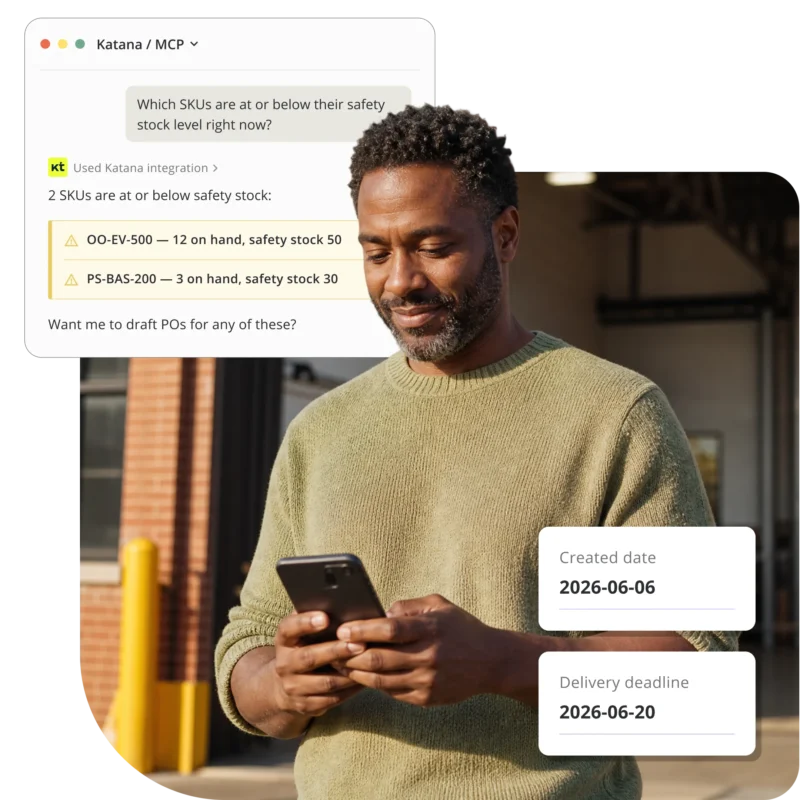
Katana MCP
Run your inventory and orders from your favorite AI chat
The first inventory platform you run from your AI chat. Connect Katana to Claude or ChatGPT, ask about your stock, sales orders, production, and suppliers, and take action without leaving the conversation.
Works with

Claude

ChatGPT

Antigravity

More coming soon

Your data answers back
Ask about stock, orders, suppliers and more, and get an answer grounded in your live Katana data. Your AI chat reads directly from your account, no exports needed.

Ask to action, in one message
Create purchase orders, sales orders, manufacturing orders, and stock transfers by asking. Ask the AI to detail the change first and confirm before it acts.

Works with your Katana account
Sign in with your existing Katana account and you’re connected in under five minutes. Account owners can connect straight away — anyone else needs the Access to MCP permission enabled by an owner first.
WHAT IT IS
A live connection between
your inventory and AI
Katana’s MCP is an open, secure connection between your Katana account and Claude or ChatGPT. Sign in once with your existing account, through a non-technical setup any team can do in minutes.
01. CONNECT
Add Katana to your AI client in under a minute
Sign in to your Katana account when prompted — no API key or technical setup.
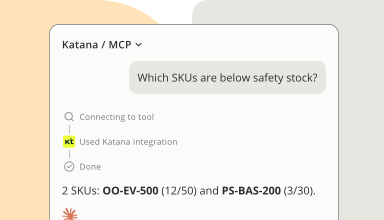
02. ASK
Get answers grounded in your live Katana data
Talk to your inventory, orders, production and suppliers in plain English.
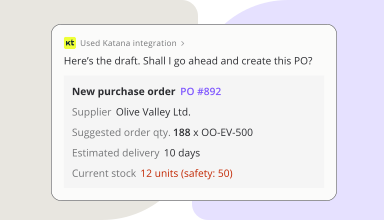
03. ACT
Create and update with full control
Review and confirm every action before it takes place.
What you can do
Your entire operation
just one prompt away
Your daily ops questions, answered in seconds. Real prompts you can use today to ask and act on stock, orders, production, and purchasing.

Know what’s where, in seconds.
Ask the question, get the number – live from your Katana account.

Build me a dashboard of my stock by location.
Which SKUs are at or below their safety stock level right now?
Show me everything arriving from suppliers in the next 14 days.
Summarize today’s sales and inventory movements.

Quote, confirm, and fulfill by asking.
Ask about an open order or create a new one on the spot.
Raise sales prices by 5% for every product in [category].
Can we fulfill SO-2231 from current stock? What’s blocking it?
Here’s a customer’s order as a PDF, draft the sales order from it.
Push back the delivery date on SO-241 to next Tuesday, customer requested.

Run the shop floor through chat.
Start, find, and unblock manufacturing orders without clicking through screens.
If I take this order for 500 units, can I hit the ship date with what I have, and what do I need to buy?
Create an MO for 500 units of Product X, due May 28.
Which MOs are running late and what’s the missing material?
Replace zipper ZIP-40 with ZIP-45 across all the BOMs that use it.

Place and chase orders, conversationally.
Cut the supplier-portal trawling. Ask once, act once.
What’s our open PO value with Supplier A and which lines are overdue?
Set up these items in Katana from this supplier quote PDF and link them to the supplier with lead times.
Lead times on our most recent POs from Supplier C, what’s the variance?
Supplier B emailed back, they can only ship 800 of the 1,000 units we ordered. Update the open PO.
Get end-to-end manufacturing visibility
Connect your favorite tools’ own MCP alongside Katana in the same chat, and track production as work moves and keep a clear view of materials, progress, and finished goods.

“Post today’s production status to #ops.”

“Drop my open sales orders into a sheet for tomorrow’s standup.”

“Draft a weekly inventory snapshot on our ops page.”
WHAT IT IS
A live connection between
your inventory and AI
Katana’s MCP is an open, secure connection between your Katana account and Claude or ChatGPT. Sign in once with your existing account, through a non-technical setup any team can do in minutes.
1. Open Customize → Connectors and click “+”
In Claude (web or desktop), open the left sidebar and click Customize, then Connectors. Click the + button at the top of the list to open the Add custom connector modal.
2. Paste the Katana details
Leave Advanced settings closed. Then click Add.
- Name: Katana
- Server URL: https://mcp.katanamrp.com
3. Sign in to your Katana account
A new browser tab will open. Sign in to Katana and approve the connection. You’ll be sent back to Claude on the web or desktop, with your connection active on both.
4. Try it in a new chat
Open a new chat and ask: “Show me all my currently open sales orders in my Katana account.” Katana is available by default, you’ll see Claude pull its tools and return the answer.
On Team or Enterprise, an organization owner adds Katana under Organization settings → Connectors; members connect with their own Katana account. Full guide in our Knowledge Base.
ChatGPT (Plus, Pro, Business, Enterprise, Education — web)
1. Turn on Developer mode
In ChatGPT, go to Settings → Security and login and turn on Developer mode. Then open Plugins and click the + next to the search box. The New Plugin dialog opens.
2. Fill in the Katana details
Leave Authentication as the default, ChatGPT picks up Katana’s sign-in settings automatically. Tick I understand and want to continue, then click Create.
- Name: Katana
- Server URL: https://mcp.katanamrp.com
3. Sign in to your Katana account
A sign-in page opens. Sign in to Katana and approve the connection. You’ll be brought back to ChatGPT.
4. Try it in a new chat
Open a new chat, select Katana from the apps menu, and ask: “Show me all my currently open sales orders in my Katana account.”
In a Business/Enterprise/Edu workspace an admin creates the plugin once; everyone then connects with their own Katana account. Find the full guide in our Knowledge Base.
Antigravity is Google’s developer environment for Gemini, used to run Gemini models with external tools like Katana. Katana works in both the Antigravity CLI and the IDE.
Needs Node.js. Authorize Katana once in your terminal, add https://mcp.katanamrp.com to your config file, and you’re connected.
Trust & security
Easy to use. Safe to trust.
Your Katana account defines the boundaries for AI action. Your agent acts — and stops — when you ask, and control stays with you.
Frequently asked questions
Katana MCP connects your Katana account to AI assistants you already use — Claude and ChatGPT today, more coming. Once connected, you can ask about your stock, orders, production, and suppliers in plain language — and create or update records — without opening Katana. It’s built on MCP (Model Context Protocol), an open standard for connecting AI tools to business data, so you sign in with your Katana account, no API key or code required.
Claude and ChatGPT today, with more coming. Claude works on its free plan and is the simplest to set up — a few clicks in its connector settings. ChatGPT needs a paid plan plus a one-time Developer Mode toggle to add Katana as a custom app.
You add Katana to your AI tool — as a connector in Claude or a custom app in ChatGPT — and sign in with your Katana account. No API key, no code. From there, your AI answers questions from your live Katana data and can draft changes like sales orders or stock adjustments. It’s built on MCP (Model Context Protocol), an open standard for connecting AI tools to business data. It works only with your organization’s live Katana data; most AI tools ask before applying a change, and it can’t delete anything.
Access to Katana MCP is controlled by a dedicated permission, so you stay in control of who can connect an AI tool to your data — the account Owner decides. It’s on for Owners by default, and an Owner (or a user with Manage users and permissions) enables it for others under Team → the user → Admin tab.
You sign in with your own Katana account, so the AI connects through your own login — no API key to share or leak, and it works only within your organization’s data. Most AI tools ask before applying a change, and you can ask yours to always confirm first. Deleting isn’t possible via the connection, and you can disconnect at any time.
One honest note: AI tools can occasionally get things wrong — review what they draft and verify before acting. Data residency and training policies vary by AI provider, so check your provider’s terms.
Almost anything you’d normally do in Katana — just by asking. Check stock and inventory, spot items running low, and look up orders. You can also create and update records — orders, POs, stock transfers and adjustments, even BOMs built from a file. Because the connection runs on Katana’s public API, it reaches the same data your team works with day to day. It answers in the moment and works within Katana — and while it can create and update, it can’t delete. Removing records stays in your hands.
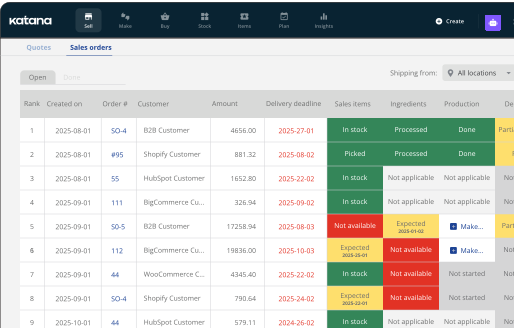
Ready for real-time inventory control?
Join 1500+ product businesses replacing outdated systems with inventory software made for modern commerce.